🚀 Getting started
From download to connected in about five minutes. No installer, nothing else to set up.
What you need
- Windows 10 or 11.
- A running Joint Operations dedicated server that you are the admin of.
- The server's admin port, and an admin username and password (next step shows where they are).
1. Download and run
- Download WolfRAT and unzip it anywhere you like, for example
C:\WolfRAT\. - Double-click
WolfRAT2.exe. That is the whole install.
Keep the file named WolfRAT2.exe. The built-in updater looks for that name, and a renamed copy can get stuck offering the same update again and again.
WolfRAT keeps its settings in small files next to the exe. To move it to another PC, copy the whole folder.
2. Find your server's admin details
They live in two files in your JO server folder:
| File | What to look for | Goes into WolfRAT as |
|---|---|---|
game.cfg | The line remote_admin_port = 4000 | Port |
admin.cfg | One line per admin, at the bottom: NAME PASSWORD RIGHTS - for example admin mypassword 3F | Username and Password |
- The port is in
game.cfg. If there is noremote_admin_portline, remote admin is switched off - add the line, save, and restart the server. - The username and password are in
admin.cfg. The name is not case sensitive; the password is. - RIGHTS decides what that admin may do. Use
3Ffor a full admin - that is what WolfRAT needs for everything to work. (The top ofadmin.cfgexplains the numbers if you ever want a limited admin.)
admin.cfg can also limit which addresses are allowed to connect (the ip_restrict lines explained inside the file). If WolfRAT cannot connect from another PC, check nobody has set one.
3. Connect
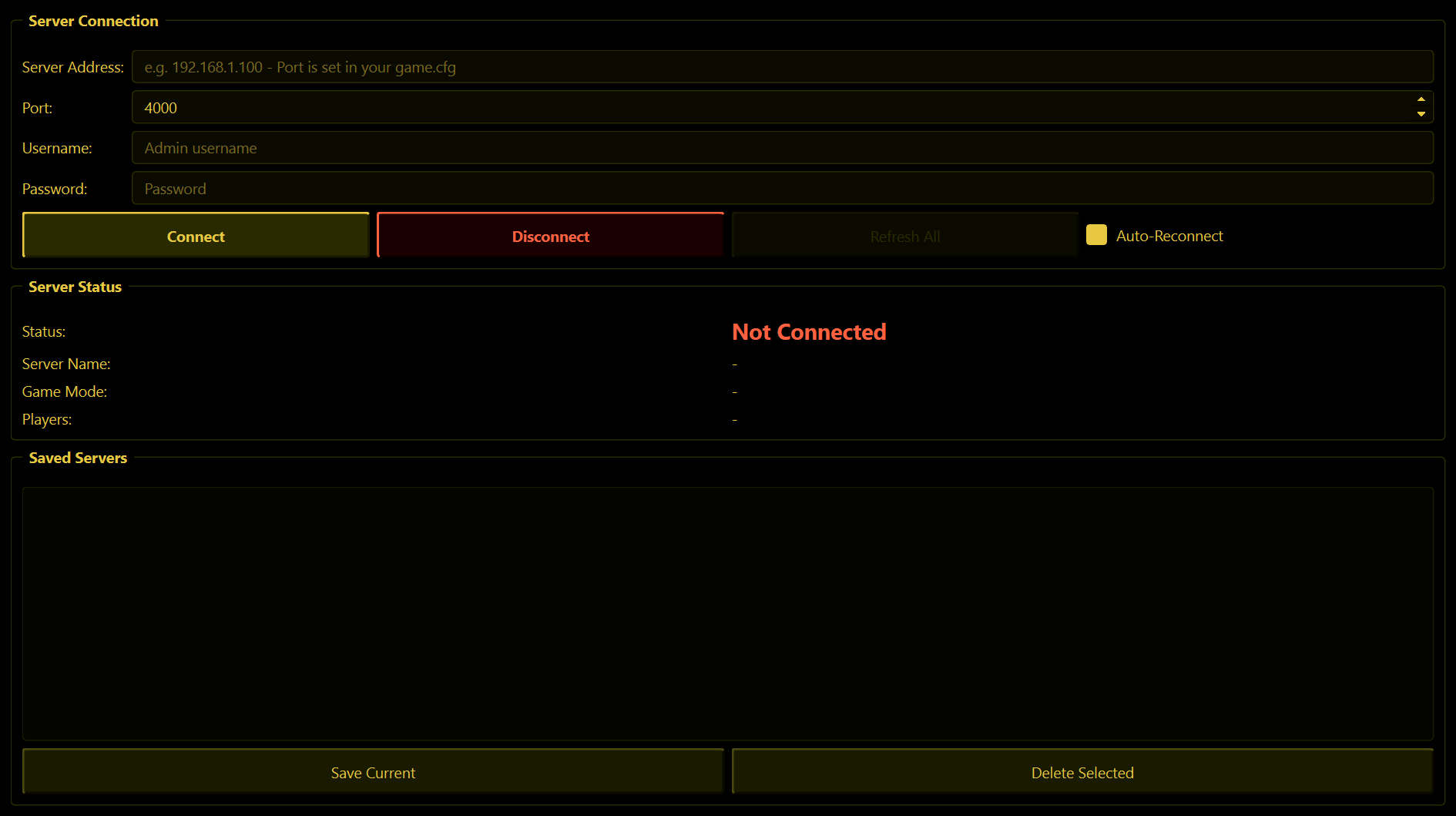
- On the Server tab, type the Server Address. Use
127.0.0.1if WolfRAT is on the same PC as the server, otherwise the server's IP address. - Fill in Port, Username and Password from the table above.
- Press Connect. The status turns green, and the server name, game mode and player count fill in.
- Press Save Current so you never have to type it again - next time, double-click it in Saved Servers.
Cannot connect? Check that the server is actually running, that the port matches AdminPort, and that a firewall is not blocking it. Over the internet, the admin port also has to be forwarded on the server's router. More in Troubleshooting.
4. Same PC or somewhere else?
WolfRAT works either way, but a few features change numbers inside the running server or write a small file into its folder, so they only work when WolfRAT runs on the same PC as the game server:
| Feature | Remote PC | Same PC as the server |
|---|---|---|
| Players, maps, settings, weapons, chat, votes, mods, sprees, web admin | Yes | Yes |
| Weather, lightning and earthquakes | No | Yes |
| Private welcome (the message only the new player sees) | No | Yes |
5. Where to go next
- Add your trusted regulars on the Mods tab so they can look after the server from inside the game.
- Set up a welcome and a few recurring messages.
- Switch on map voting so players choose the next map.
- Print the chat command list for your players and mods.
Keeping WolfRAT up to date
Press Check for Updates in the bottom-right corner. If there is a newer version, WolfRAT downloads it, swaps itself and restarts - your settings are kept.